Forge, NeoForge and Fabric are not interchangeable
Each loader expects jars built for it. A Fabric jar placed in a Forge mods folder is not loaded, or causes an error. NeoForge split from Forge, and on newer game versions their builds are also separate. Check the loader named on the file before downloading.
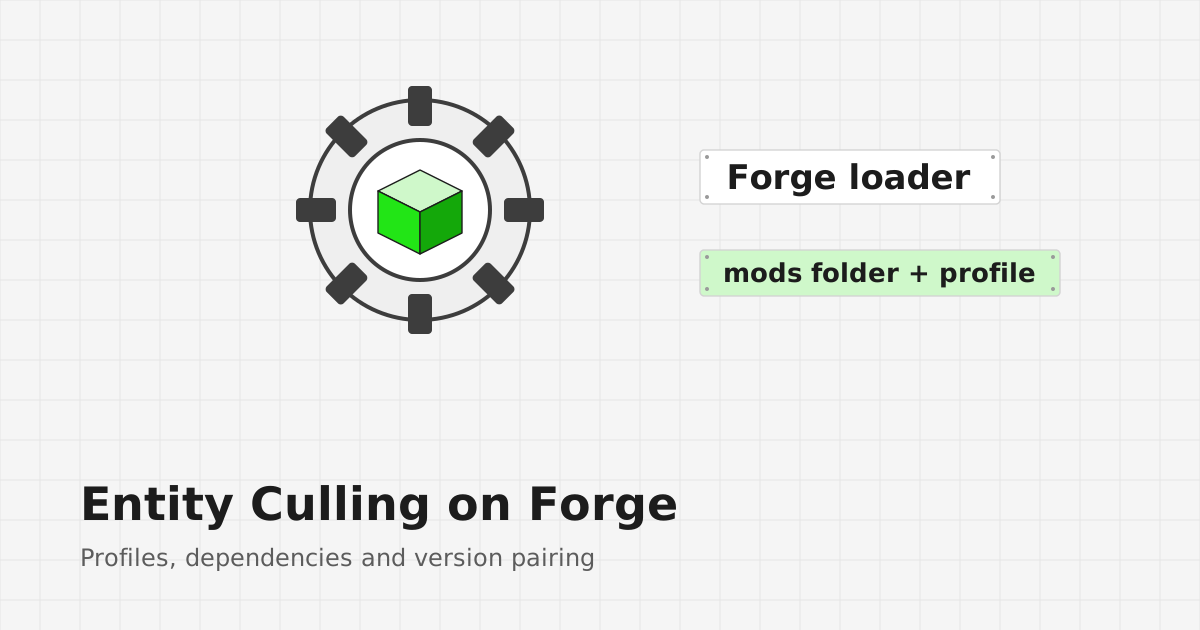
Installing Forge
- Download the Forge installer for your game version from the Forge project.
- Run it and choose Install client.
- Open your launcher, select the new Forge profile and start it once.
- Close the game. A mods folder now exists in the game directory.
Adding Entity Culling
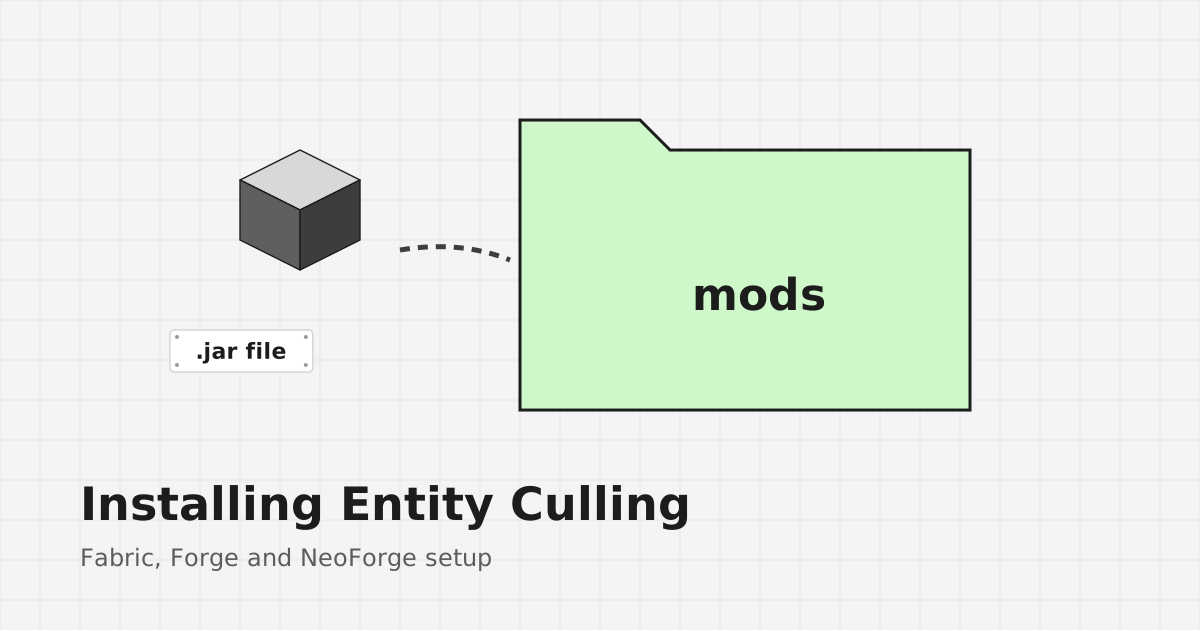
Place the Forge build of Entity Culling for your game version in the mods folder, then start the Forge profile again. On the main menu, the Mods screen should list it.
If you use a separate game directory
Launchers often let each profile use its own folder. Make sure you open the mods folder of the profile you actually launch, not the default one.
Common Forge pitfalls
- The jar was made for Fabric or NeoForge.
- The jar targets a different game version than the Forge profile.
- A copy of the mod already exists inside a modpack.
- The download was the GitHub source archive rather than a built jar. The homepage download provides source code, so read the installation guide if you intend to build it.
After installation
The config file appears in the config folder after the first launch. If something looks wrong in game, the troubleshooting guide covers the usual causes.